
Platforms
WordPress to HTML: when a static export makes sense
Separate WordPress editing from public static delivery, with a plan for forms, search, publishing, and recovery.
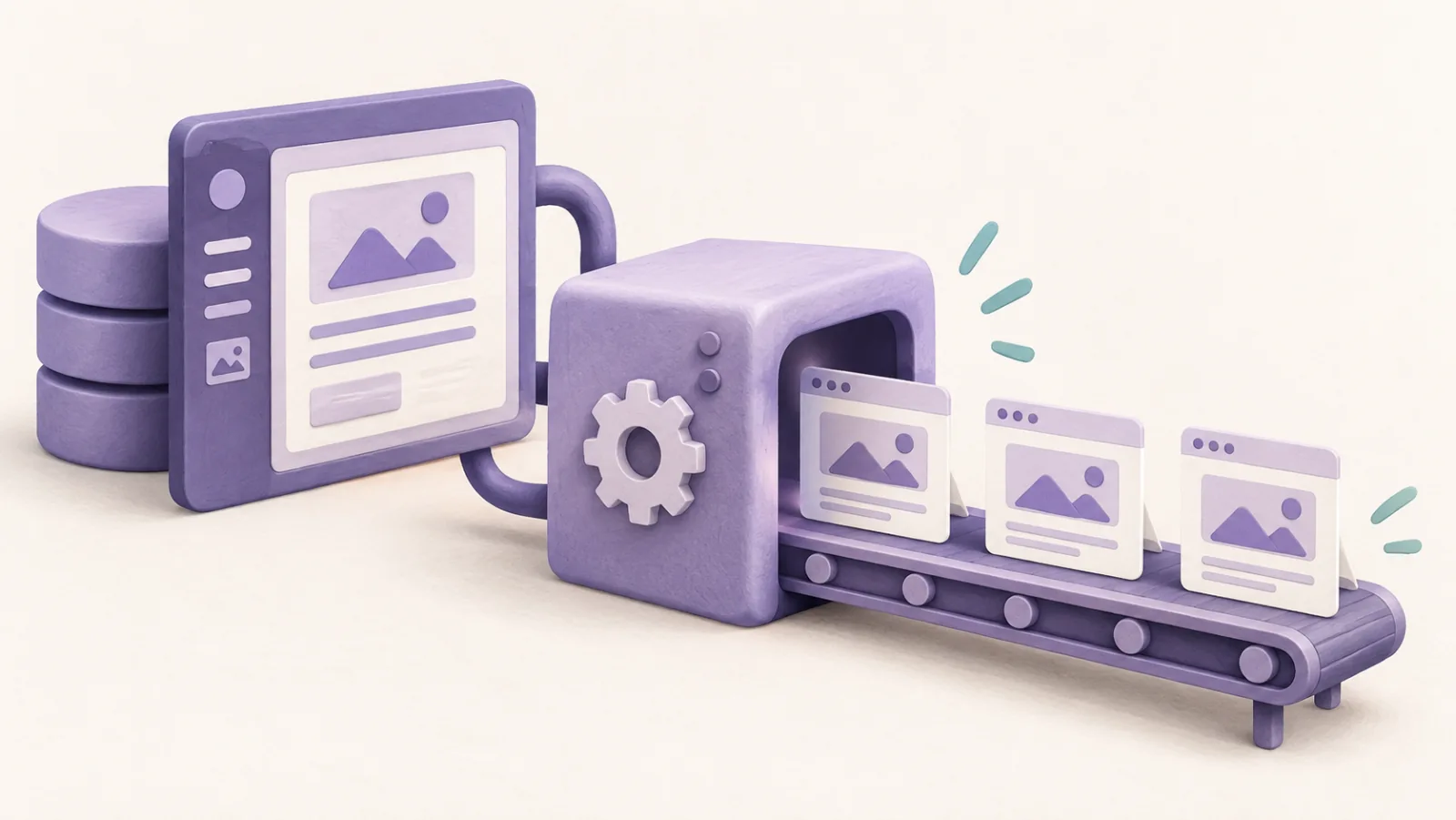
Converting WordPress to HTML means publishing a static snapshot of the pages WordPress generates. Visitors receive ready-made files from a static host, while WordPress can remain the private editing system. You regenerate and deploy the files when content changes.
This can suit a brochure site, documentation, or a mostly read-only publication. A normal static export does not recreate server-side logins, a shopping cart, or personalized content. Decide how those features will work before choosing an export plugin.
- Edit in WordPress Maintain content, theme, and the publishing source.
- Generate files Export public pages and their required assets.
- Deploy HTML Publish a versioned snapshot to the visitor-facing host.
Decide which features survive a snapshot
| Feature | Planning question |
|---|---|
| Public articles and service pages | Can an exported page and its assets provide the whole experience? |
| Contact forms and newsletter signup | Which supported endpoint receives the submission? |
| Search and comments | Will you use a static index or a separate service? |
| Login, memberships, and checkout | Where does the authenticated or transactional backend run? |
| Frequently changing data | How often must the snapshot rebuild, or should a live API supply it? |
Browser JavaScript can call external services, so static delivery does not mean every interaction is impossible. It does mean those interactions need an explicit architecture. A button rendered from WordPress can remain visible after export even when its original server action no longer exists.
Use an exporter with a clear feature boundary
The author-maintained Simply Static plugin listing describes a free core that generates static files and exports a ZIP or local directory. Its paid offerings add integrations and deployment features. Check the edition and compatibility needed for forms, search, comments, and your publishing workflow.
Treat claims of perfect compatibility or automatic performance gains as things to verify on your site. An exporter successfully finishing does not prove it discovered every page, copied every asset, or preserved every user action.
Run a small conversion before committing
Use a separate copy of the WordPress source and a temporary deployment address. Export representative pages: the home page, a long article, a nested URL, pagination, and a page with important interactive elements. Review generated links so they point to the intended public hostname rather than the private editing site.
Check CSS, JavaScript, fonts, responsive images, downloads, and any content loaded after the initial page. Inspect missing-resource errors and destination requests. Keep secrets and non-public source files out of the deployment output.
For WordPress features that depend on background scheduling or server requests, define the replacement workflow. Scheduled publishing is only useful if it results in a new public deployment at the right time. A private post becoming published in the editor does not automatically update an older static snapshot.
Choose the host and preserve URL behavior
Use a platform that supports your output structure, redirects, custom domain, and HTTPS. Our static website hosting guide compares publishing workflows. Cloudflare’s HTML deployment guide is one example of a host accepting generated static files.
Open nested URLs directly and check the expected missing-page behavior. Preserve existing canonical URLs where possible. If paths change, handle them as a URL migration, including relevant redirects and updated internal links.
Keep WordPress recoverable and protected
A static export is not a full WordPress backup. It does not replace the database and source files needed to edit and regenerate the site. Retain the WordPress installation, assets, configuration, and a supported recovery path.
Keep the editing system updated and restrict its access appropriately. Publicly serving static files can reduce exposure of the WordPress runtime, but it does not secure your registrar, deployment account, build tools, or private editor automatically.
Finally, document how to publish a correction and roll back a bad export. If only one developer can update the site, a cheaper hosting bill may come with an expensive operational dependency. Choose static delivery when the complete publishing process suits the business, not solely because the exported home page loads.